


Two-Factor Authentication (MFA)
SeeSignage now supports two-factor authentication (MFA, Multi-Factor Authentication), adding an extra layer of security to your account during login.
With MFA enabled, signing in requires both your password and a one-time verification code generated by an authenticator app. This helps keep your account secure even if your password becomes compromised.
How to enable MFA:
- Open Profile from the SeeSignage navigation menu.
- Select Security.
- Click Enable authenticator app.
- Scan the QR code displayed on your screen using an authentication app such as Google Authenticator, Microsoft Authenticator, or Authy.
- Enter the six-digit code generated by the app and confirm the setup.
After setup, you’ll need to enter both your password and the one-time code from your authenticator app each time you sign in.
Recommendation: Enable two-factor authentication today to strengthen the security of your SeeSignage account.
New in SeeSignage
-

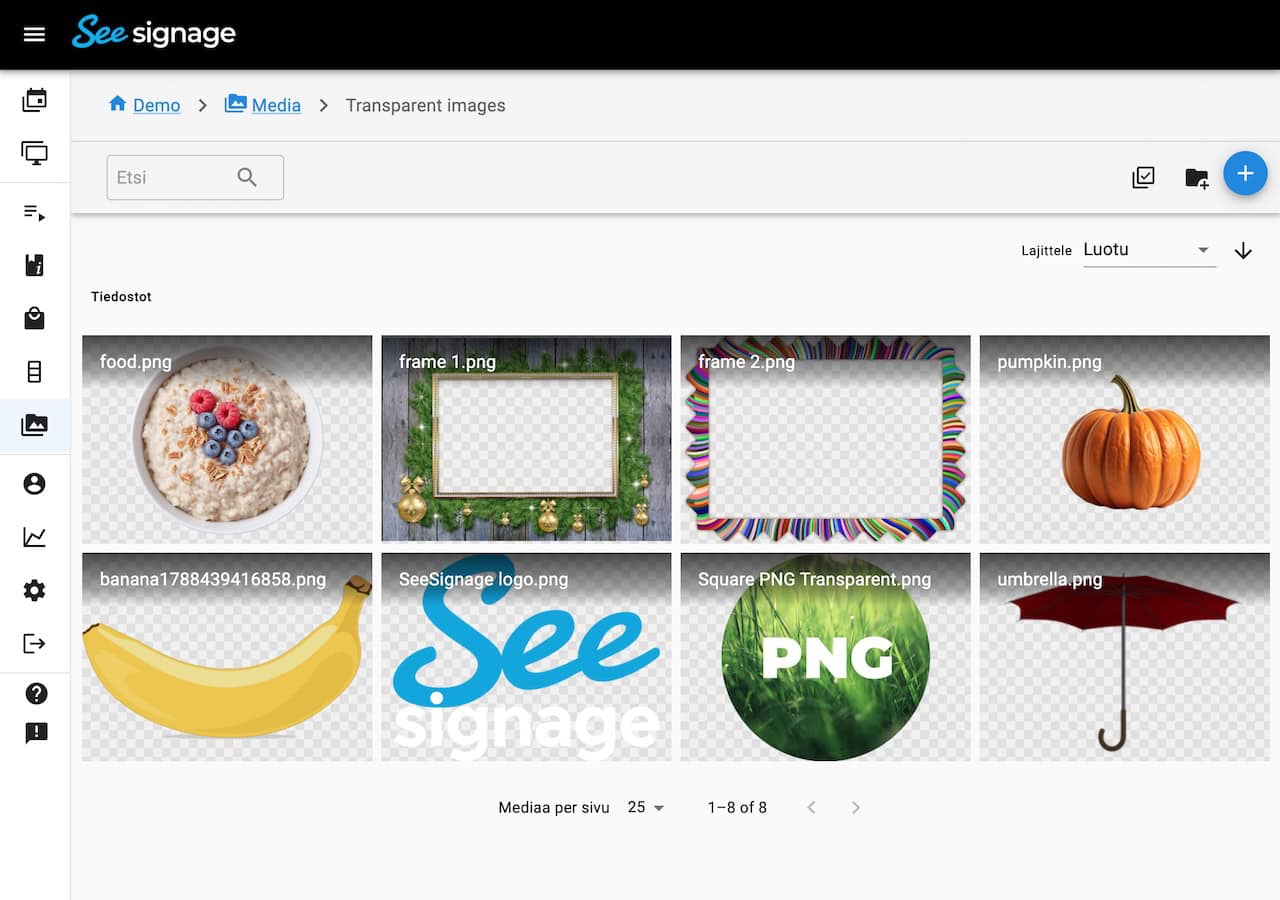
Improvements to the Media browser, Campaign Preview and Playlists
-
Media, Player and Platform Improvements
-
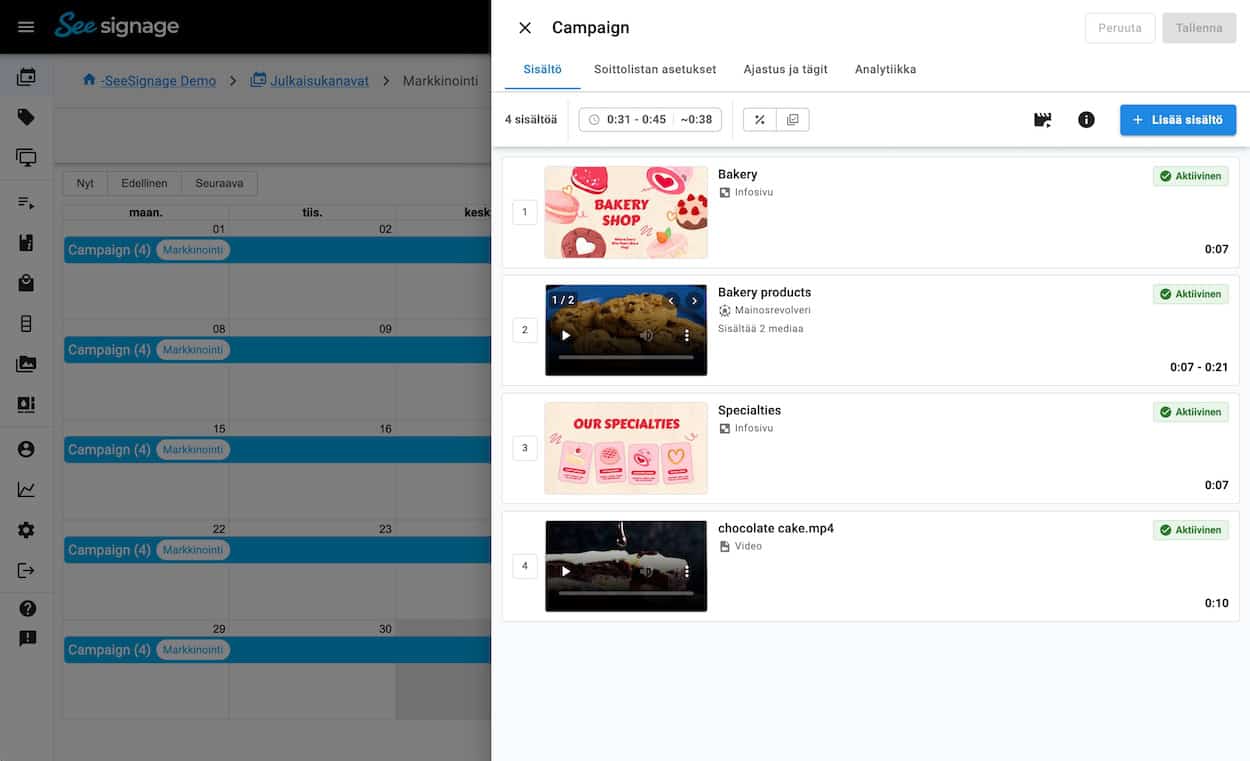
Redesigned Playlist Editing View and Other Improvements
-
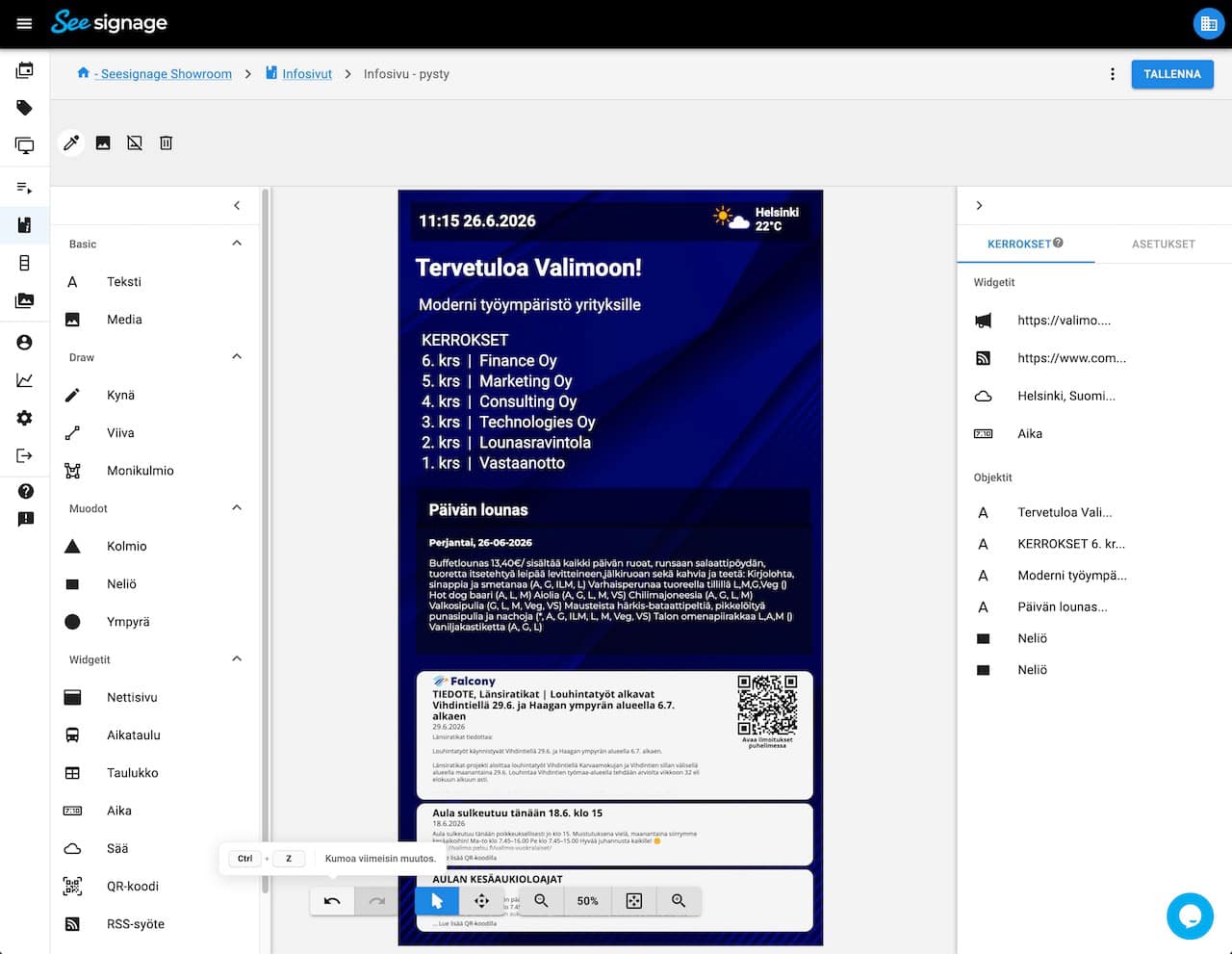
Info Page Editor Improvements: Undo/Redo, Layer Management and More
-
PDF Conversion Updated and System Improvements
-
Two-Factor Authentication (MFA)
Give us feedback
We are constantly developing new features for the cloud service. It is important to us that you get the best possible benefit from SeeSignage.